Contactless payments are no longer a convenience — they are an expectation. Customers want fast, frictionless checkout experiences, and businesses that cannot offer them risk losing sales to competitors who can. The good news is that SmartPOS AI makes setting up contactless payments straightforward, regardless of your location or preferred payment provider.
This guide walks you through every option available in SmartPOS AI, from QR code payments to full gateway integrations, so you can choose the setup that works best for your business.
Option 1: QR Code Payments
The fastest way to accept contactless payments with SmartPOS AI is through QR codes. When a transaction is ready at checkout, the cashier can generate a QR code directly on the POS screen. The customer scans it with their phone and completes the payment through their preferred mobile wallet or banking app.
QR code payments require no additional hardware whatsoever. They work on any device that runs SmartPOS AI, including tablets, phones, and laptops. This makes them ideal for pop-up shops, market stalls, food trucks, and any environment where traditional card terminals are impractical. QR codes can also be used for more than just payments — see our QR code menu ordering guide to learn how to combine QR payments with tableside ordering for a fully contactless experience.
To enable QR payments, navigate to Settings > Payment Methods in your backoffice and toggle on the QR payment option. You can customize the QR display with your branding and choose whether to include itemized details in the payment request.
Option 2: Payment Link Generation
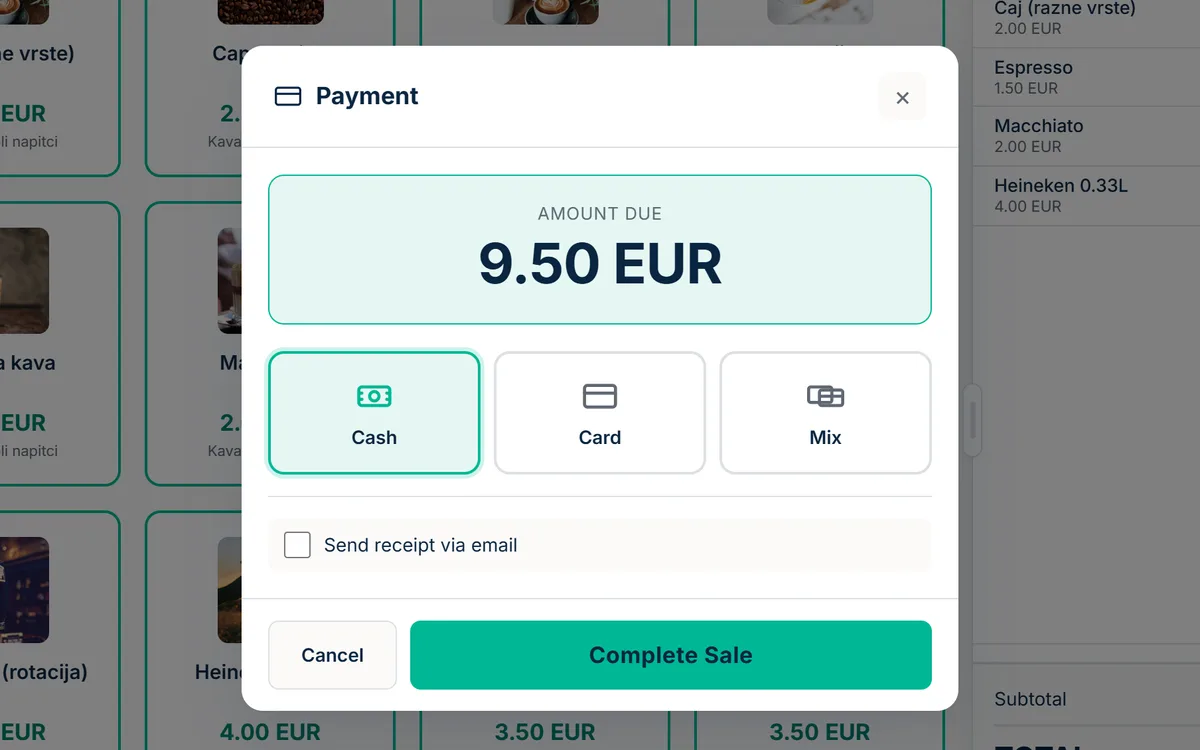
For businesses that take orders remotely — by phone, social media, or messaging apps — SmartPOS AI can generate shareable payment links directly from the POS interface. Each link contains the transaction amount and reference, and directs the customer to a secure hosted payment page.
Payment links can be sent via SMS, email, WhatsApp, or any messaging platform. They are valid for a configurable period (default 24 hours) and automatically update the transaction status in your POS once the customer pays. This is particularly useful for restaurants offering delivery, service businesses collecting deposits, or any scenario where the customer is not physically present.
Integrating with Global Payment Gateways
SmartPOS AI supports direct integration with six major global payment gateways, giving you extensive coverage across regions and currencies:
- Stripe — The most widely used gateway, supporting cards, wallets (Apple Pay, Google Pay), and local payment methods in over 40 countries. Connect your Stripe account in minutes by entering your API keys in the backoffice.
- Square — Popular in North America and Australia, Square offers competitive processing rates and a seamless integration. SmartPOS AI syncs transactions bidirectionally with your Square dashboard.
- PayPal — With over 400 million active accounts globally, PayPal is a trusted checkout option. The integration supports both PayPal wallet payments and card processing through PayPal Commerce.
- Mollie — A European-focused gateway that supports iDEAL (Netherlands), Bancontact (Belgium), SOFORT (Germany), and dozens of other local payment methods. If you operate in the EU, Mollie provides unmatched local method coverage.
- Razorpay — The leading payment gateway in India, supporting UPI, net banking, cards, and wallet payments. Essential for businesses operating in the Indian market.
- MercadoPago — The dominant payment platform in Latin America, covering Brazil, Mexico, Argentina, Colombia, and more. If you serve customers in LATAM, this integration is indispensable.
Regional Gateways for Specific Markets
In addition to global providers, SmartPOS AI integrates with specialized regional gateways that offer better rates and broader local payment method support in their respective markets:
- Monri — The leading payment processor in the Balkans region, covering Bosnia and Herzegovina, Serbia, and Croatia. Monri supports all major local card networks and provides processing in local currencies (BAM, RSD, HRK/EUR). For businesses in the Western Balkans, Monri delivers significantly lower processing fees than international gateways.
- CorvusPay — A Croatian payment gateway widely adopted across southeastern Europe. CorvusPay offers advanced fraud prevention, installment payment support (a major feature in Croatian retail), and integration with local banking systems.
Setting Up Your First Gateway
Regardless of which gateway you choose, the setup process in SmartPOS AI follows the same pattern:
- Log in to your backoffice dashboard and navigate to Settings > Payment Gateways.
- Select your preferred gateway from the list.
- Enter your API credentials (public key and secret key, which you obtain from your gateway provider's dashboard).
- Configure your preferences: currency, auto-capture vs. manual capture, and webhook URL for status updates.
- Run a test transaction to verify everything works.
- Toggle the gateway to Live mode.
The entire process typically takes under ten minutes. Detailed setup instructions for each gateway are available in our documentation.
Combining Multiple Payment Methods
SmartPOS AI does not restrict you to a single payment method. You can enable multiple gateways simultaneously and let customers choose their preferred option at checkout. If you are still evaluating which POS platform to use, our guide on choosing the best POS system for small businesses covers what to look for in payment flexibility and beyond. The POS screen displays all enabled methods, and the cashier or customer selects the one they want. This flexibility maximizes your conversion rate by eliminating payment friction.
Ready to offer contactless payments in your store? Start your free trial and have your first gateway configured in minutes. Visit our pricing page to see which plan fits your needs.